My Monorepo Practices: From Fundamentals to Best Practices
Covers key Monorepo concepts, package strategies, how to manage cross-package dependencies, best practices for shared configuration, and tips for improving build efficiency with Turborepo. It also discusses configuring npmrc and pnpm-workspace to optimize package management and help teams achieve more efficient and sustainable frontend engineering.
This article systematically summarizes some of my practical experience with Monorepo and frontend engineering. Let’s start with a few core concepts.
Monorepo (single repository): A Monorepo manages multiple applications and shared libraries in one repository. Compared with a multi-repo model, Monorepo is often more efficient, especially for code sharing, dependency upgrades, and cross-project collaboration.
Engineering: Using conventions, toolchains, and workflows to move from “it runs” to “maintainable, collaborative, and sustainably deliverable.” It covers not only development, but also the full lifecycle, including build, testing, release, and quality assurance.
The Most Important Abstraction in a Monorepo: App Packages and Library Packages
App Package (App)
An app package is a project that will ultimately be deployed, usually placed under apps/*, such as Web, Admin, Docs, and BFF.
Library Package (Package)
A library package is used for reusable capabilities, usually placed under packages/*. It is generally not deployed directly, but consumed by app packages.
In a Monorepo, there are three common strategies for library packages:
- Publishable Package
- Compiled Package
- Source Package
Which one to choose depends on the scenario. There is no absolute best or worst.
Three Library Package Strategies
1) Publishable Package: Reuse Outside the Repository
If a package is intended for external teams or open-source users, a publishable package strategy is the right choice.
Advantages:
- Clear standards and boundaries for external distribution
- Independent versioning with more formal compatibility management
Trade-offs:
- More complex
package.jsonfields (name,exports,types,files,publishConfig, etc.) - You may need to handle CJS/ESM export and consumption compatibility (
import/require, bundler resolution differences) - You need to maintain release workflows, version semantics, and changelogs
- During rapid internal iteration, version and lockfile updates increase cognitive load
2) Compiled Package: Reuse Inside the Repository with Stability and Performance
A compiled package builds dist artifacts first, and app packages consume the build output.
Advantages:
- More stable app builds and clearer module boundaries
- Less repeated transpilation, especially in large repositories
Trade-offs:
- You must maintain the
buildstep and artifact consistency - Debugging is less direct than consuming source code
A typical setup:
{
  "name": "@workspace/utils",
  "exports": {
    ".": {
      "types": "./src/index.ts",
      "default": "./dist/index.js"
    }
  },
  "scripts": {
    "build": "tsc"
  }
}
In the workspace, dependencies are usually declared as:
{
  "dependencies": {
    "@workspace/utils": "workspace:*"
  }
}
3) Source Package: Developer Experience First
A source package exports src/*.ts(x) directly, and the app package build tool (such as Vite or Webpack) handles transpilation.
Advantages:
- Simple setup, immediate feedback after edits, great DX
- One less “build first, then consume” step
Trade-offs:
- App packages bear the cost of type checking and transpilation
- Higher requirements for TypeScript configuration consistency
Example:
{
  "name": "@workspace/utils",
  "exports": {
    "./tool": "./src/tool.ts"
  }
}
This mode usually does not need a build script, but it is recommended to keep an independent type-check script (for example, typecheck).
Many teams eventually mix these three strategies:
- UI components use compiled packages or source packages
- Configuration packages (eslint, tsconfig) use source packages
- SDKs or shared public capability packages use a publishable flow
How to Initialize a Reliable Monorepo
The best way to learn is to imitate good examples. See the Turborepo Getting Started page.
For example, @repo/ui in Kitchen Sink uses a compiled package approach. If you want to adopt compiled packages, look at how apps/admin consumes it. The example also shows shared config packages such as eslint-config and tsconfig. Different packages inherit from a base config, which keeps style consistent while allowing project-specific adaptation (such as rule tweaks or plugin loading).
If you prefer source packages, refer to the Vite + React example. In that example, @repo/ui is a source package.
In addition, Turborepo provides an AI-oriented best-practices/RULE.md, which is also worth reading: link.
Since Turborepo itself is a task orchestrator for Monorepos, its docs and examples are high quality and worth revisiting.
Shared tsconfig.json: Make Configuration a Package
In a Monorepo, creating a shared tsconfig package (for example under packages/typescript-config) is common practice: put generic TypeScript options in a base config (base.json), then let each project (such as Next.js apps and library packages) use extends to inherit it. This keeps TypeScript settings consistent across the repository.
packages/typescript-config can declare a package.json like this:
{
  "name": "@repo/typescript-config"
}
About tsconfig references
In Monorepos, many people encounter TypeScript references. Turborepo officially recommends that in most cases you do not need TypeScript project references.
Reference: You likely don’t need TypeScript Project References
Project references introduce extra configuration and caching layers, which may cause issues with Turborepo and often provide limited practical benefit.
Specifically:
-
Extra configuration: when using TypeScript project references, you need to configure corresponding tsconfig files across projects, which increases complexity.
-
Extra cache layer: TypeScript project references generate separate build outputs for each project, and you need to manage related cache/output directories in
.gitignoreandturbo.json.
However, in specific scenarios, such as end-to-end type sharing with Hono RPC, project references are very important. References:
If you use source packages, it is recommended to align key compiler options (such as module and moduleResolution) to avoid inconsistent cross-package resolution.
{
  "$schema": "https://json.schemastore.org/tsconfig",
  "compilerOptions": {
    "module": "ESNext",
    "moduleResolution": "Bundler"
  }
}
references example:
{
  "references": [{ "path": "../packages/utils/tsconfig.json" }]
}
About package imports (subpath imports)
When writing package code, you can create aliases via compilerOptions.paths in tsconfig. However, that alias only works within the current TypeScript config context and is not automatically recognized by other packages.
If you use TypeScript 5.4+, prefer Node.js subpath imports (imports) instead of TypeScript path aliases. Define it in package.json:
{
  "imports": {
    "#*": "./src/*"
  }
}
Then inside source code, you can import your own files like this:
import { MY_STRING } from "#utils.ts"; // Uses .ts extension
export const Button = () => {
  return <button>{MY_STRING}</button>;
};
With this approach, subpath imports work within the module without being constrained by TypeScript path configuration. Here, imports mainly solves internal package references, while exports defines what the package exposes externally. In other words, cross-package consumption should still use package names and exports, not imports as a cross-package alias.
In this model, keep import paths and output format consistent (for example, compiled packages should use the .js suffix).
Cross-Package “Go to Definition”
In Monorepo projects, packages often depend on each other. If you want IDEs (such as VS Code) to navigate across packages with “Go to Definition” (for example, jumping from code in ui to code in utils), you need a bit of configuration so TypeScript type information links correctly across packages.
For compiled packages, once a package is built, “Go to Definition” usually does not jump directly to source code. For example, clicking an export from A.js often jumps to generated code in dist, not source code. To make navigation work better, enable declaration and declarationMap in TypeScript config. Generated .d.ts files and .d.ts.map source maps help editors locate the original TypeScript source.
Configuration example:
{
  "compilerOptions": {
    "declaration": true,
    "declarationMap": true
  }
}
I also use another approach: switch to source packages and configure allowImportingTsExtensions plus rewriteRelativeImportExtensions. After enabling them, editors recognize explicit .ts imports, so “Go to Definition” points directly to TypeScript source. Existing imports such as import './A.js' can also be changed to import './A.ts'.
Related configuration:
{
  "compilerOptions": {
    "allowImportingTsExtensions": true,
    "rewriteRelativeImportExtensions": true
  }
}
Option explanation:
-
allowImportingTsExtensions: Allows explicit.tsextension imports. By default, TypeScript typically does not require explicit extensions, but with this option enabled, you can specify.tsdirectly inimportstatements. -
rewriteRelativeImportExtensions: Rewrites relative.ts/.tsximport extensions to.jswhen TypeScript emits JavaScript. This keeps runtime import paths compatible while you still write.tsimports in source code.
With these options, cross-package navigation becomes smoother and developer efficiency improves.
Using Turborepo to Manage the Package Graph and Task Graph
In large projects, or cross-language repositories, there can be many commands. Different packages may have their own build, dev, lint, test, and type-check commands. Packages may also depend on one another. Some commands must wait for others to finish first, and Turborepo handles this well. In this section, we look at how to manage these relationships with Turborepo.
Package Graph
Turborepo automatically discovers dependency relationships from your Monorepo structure and each package’s
package.json. For example, ifapps/webdepends onpackages/uiandpackages/utils, Turborepo connects these relationships into a graph that represents the dependency network between packages. This graph is the foundation of the Task Graph.Task Graph
The Task Graph is a directed acyclic graph (DAG) that Turborepo builds from your task definitions, based on
turbo.jsonand the Package Graph above. Nodes are tasks (such as build, lint, test), and edges represent dependencies between tasks, meaning “this task must wait for another task to finish before it can run.”
If a task (for example, build) is configured in turbo.json with dependsOn: ["^build"], it means: “before running build in the current package, run build in all dependency packages first.” This dependency is represented as an edge from dependency tasks to the current task.
For example, before running build for apps/web, Turborepo will run build for packages/ui and packages/utils first. Turborepo also has its own caching strategy: by declaring task inputs and outputs, it can detect whether files changed. If not, it can skip the step directly. At the same time, tasks can run in parallel as much as possible, improving build efficiency.
In addition, tasks can be categorized. For persistent tasks, you can declare "persistent": true. Some persistent tasks may require another task to always run alongside them, such as a backend server or a router library’s router-cli; you can use the with field for auto-start behavior. Even non-TypeScript parts of a repository can be integrated into Turborepo’s task pipeline.
Turborepo also supports tui, so you can view all logs and interact with tasks in one terminal.

Turborepo improves build and task execution efficiency through optimizations such as parallel execution and cache hits, accelerating your Monorepo workflow. For more details, see Crafting your repository - Configuring tasks.
Catalog Protocol
In Monorepos, using the same dependency versions is very common. With the Catalog protocol in pnpm-workspace.yaml, you can reduce duplication and keep versions consistent:
- Maintain one version: we usually want shared dependency versions to stay consistent across the workspace. Catalog makes this easier to maintain. Duplicate dependency versions can conflict at runtime and cause errors. With bundlers, duplicated versions also increase bundle size.
- Easy updates: when upgrading dependencies, you only edit the catalog in
pnpm-workspace.yamlinstead of changing every package.json that uses those dependencies. - Fewer merge conflicts: because dependency upgrades do not require editing many
package.jsonfiles, git conflicts from version bumps are reduced.
If you use pnpm, refer to this doc. If you use Bun, refer to this doc.
Using a pnpm-managed workspace as an example:
Define in pnpm-workspace.yaml:
packages:
  - packages/*

# define catalog and dependency versions
catalog:
  react: ^18.3.1
  redux: ^5.0.1
{
"name": "@example/app",
"dependencies": {
"react": "catalog:",
"redux": "catalog:"
}
}Engines and Package Manager Configuration
Using proper package manager settings in a Monorepo is critical. Especially with pnpm, you can specify the Node and pnpm versions to keep environments aligned and avoid version incompatibility.
{
  "engines": {
    "node": ">=10",
    "pnpm": ">=9"
  },
  "packageManager": "pnpm@9.3.0"
}
During local development, if the local version does not match what is specified in engines, pnpm will fail with an error.
Related to this, pnpm-workspace.yaml also has a nodeVersion field. When used together with engine-strict=true, pnpm checks whether your Node.js version is greater than or equal to the configured range (you should set an exact semver version here). If not, installation is rejected. For example, when developing public packages, this helps prevent installing dependencies that do not support your target Node version. See link.
nodeVersion: 22.22.0
engineStrict: true
If you use nvm, the project root may also include a .nvmrc file to pin a Node version. Then when Node is invoked in that directory, the corresponding version is activated automatically.
For example, you can set useNodeVersion: 16.16.0. pnpm will automatically install the specified Node.js version and use it for commands such as pnpm run and pnpm node. See link.
Monorepo Hoisting
Hoisting means that when dependencies are installed, some are lifted to the top-level node_modules (root directory). This allows common dependencies to be shared across the project instead of being installed separately for every subpackage. It helps avoid duplicate installs of the same version and reduces disk usage.
In npm and Yarn, dependency hoisting is usually automatic. During installation, dependencies are flattened according to the dependency graph and lifted to the root node_modules. In pnpm, dependencies are not flattened automatically in the same way; nested node_modules are created based on each package’s dependency structure.
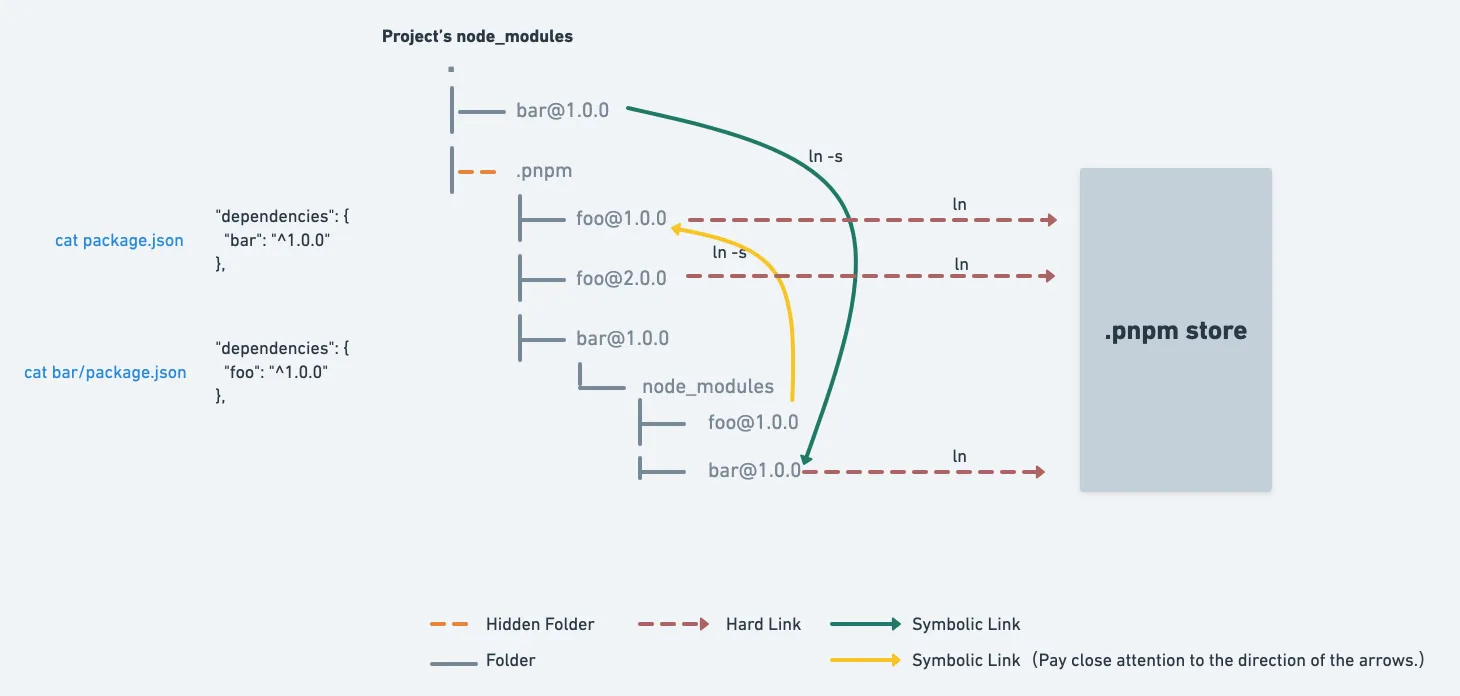
By default, pnpm creates a semi-strict node_modules, and all dependencies are hoisted to node_modules/.pnpm/node_modules. This allows packages inside node_modules to access undeclared dependencies, while modules outside node_modules cannot. With this layout, most packages work correctly.
There are still exceptions where packages do not work as expected, but this can be controlled via configuration. In such cases, you may need to set publicHoistPattern. Matched modules are installed into the root node_modules. For example, older pnpm versions used defaults like ['types', 'eslint', '@prettier/plugin-*', 'prettier-plugin-']. If the project depends on eslint or babel, you may see the following in root node_modules. In general, you usually do not need to care about this unless dependency docs explicitly require it.
> tree node_modules -L 1
node_modules
  ├── @babel
  ├── @eslint
  ├── @types
  ├── @typescript-eslint
  ├── eslint
  ├── eslint-config-ali
  ├── eslint-import-resolver-node
  ├── eslint-module-utils
  ├── eslint-plugin-import
  ├── eslint-plugin-jsx-plus
For more on hoisting, see: A diagram to show how pnpm works
Recommended npmrc and pnpm-workspace Settings
Setting proper options in npmrc and pnpm-workspace can significantly improve project management efficiency.
npmrc
-
registry: specifies the default registry URL used by npm. -
save-exact: ensures dependencies are installed with exact versions instead of ranges, for example1.2.3instead of^1.2.3.
pnpm
-
prefer-frozen-lockfile: forces using versions from the lockfile. When set totrue, even if dependencies inpackage.jsonhave changed, pnpm prefers versions inpnpm-lock.yamland avoids automatic upgrades. -
overrides: forces specific versions for certain dependencies regardless of conflicts in transitive dependencies. For example, if dependenciesAandBboth depend on packageCbut with different versions,overridescan force both to use the same version ofC.
References